What you need
- An iPhone running iOS 16 or later with Motorhome & Caravan Sat Nav installed.
- A vehicle or aftermarket display that supports Apple CarPlay.
- A wired or wireless CarPlay connection, depending on the vehicle.
- Location access and an internet connection for route calculation, live traffic and rerouting.
Set up CarPlay before the journey
- Create or select the correct vehicle profile. Check the motorhome’s height, width, length and weight before planning.
- Find the destination on your iPhone. Search an address or choose a site from the UK campsite directory.
- Review the whole route while parked. Check the destination, vehicle profile, distance, expected arrival and any traffic delay.
- Connect the iPhone to CarPlay. Follow the vehicle manufacturer’s instructions for its USB or wireless connection.
- Start guidance. Open the app through CarPlay if needed and confirm the route before moving off.
Compatibility and limitations
CarPlay availability and connection behaviour vary between vehicle manufacturers and head units. Some vehicles require a USB cable; others support wireless CarPlay. Check the handbook for the vehicle or display if the app does not appear.
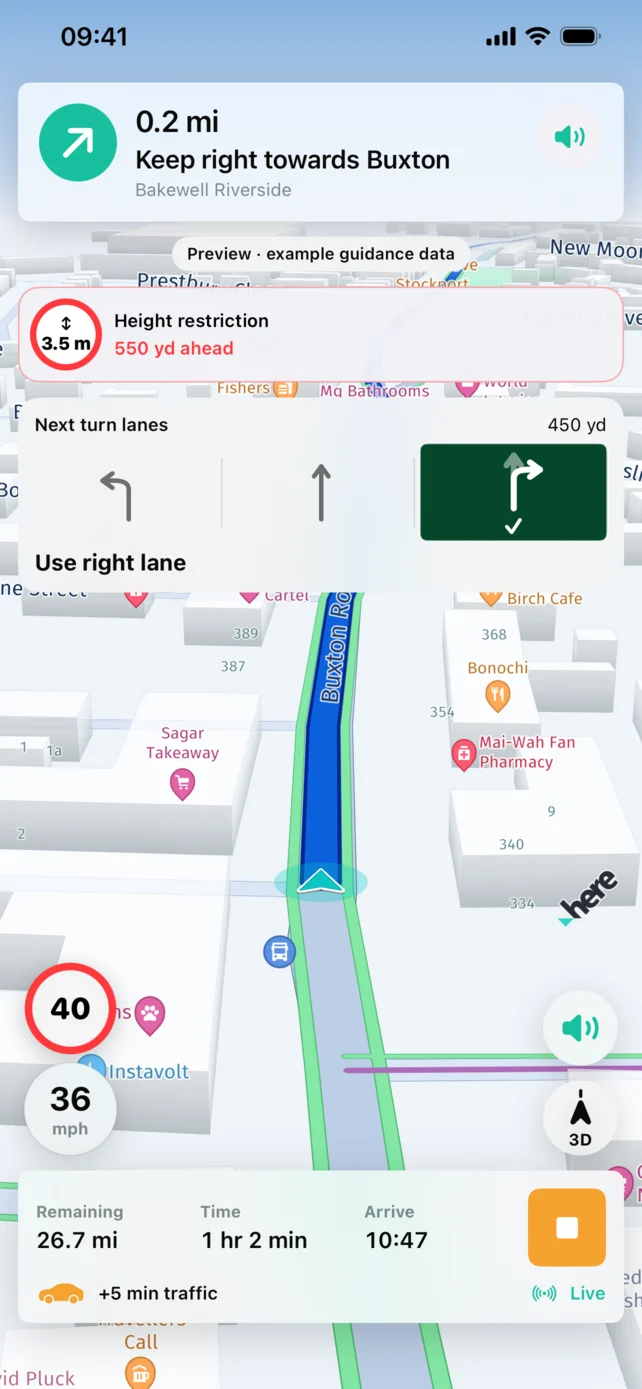
Use the iPhone to enter detailed vehicle information, explore campsites and review the route. CarPlay is intended to present active guidance with fewer distractions, not to replace the full setup experience.
If CarPlay does not connect
- Confirm CarPlay is enabled in the vehicle and in the iPhone’s settings.
- Unlock the iPhone and accept any first-time connection prompt.
- For wired CarPlay, try a suitable data cable and the vehicle’s designated USB port.
- For wireless CarPlay, check Bluetooth and Wi-Fi are enabled.
- Reconnect only while safely parked.
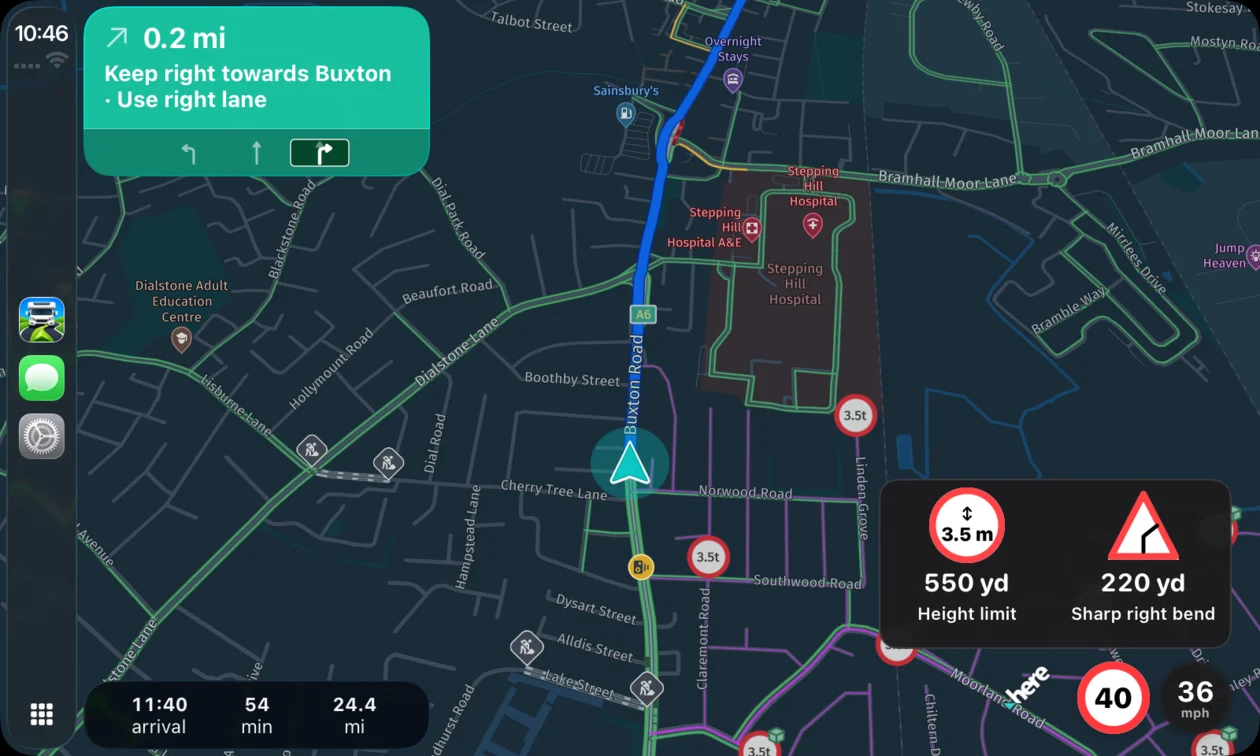
What can you do on the CarPlay display?
CarPlay supports destination search, saved Home and recent destinations, route previews and voice controls as well as turn-by-turn guidance. Set up your vehicle dimensions and weight before travelling.
Example: prepare a campsite journey
While parked, select your vehicle, find the campsite and compare the final approach with the site's arrival instructions. Preview the journey before starting guidance on the dashboard display. If you are towing for the first time, work through our first caravan journey checklist.
Will CarPlay work without mobile data?
A CarPlay connection does not replace internet access. Route calculation, traffic and rerouting need connectivity. Review the journey before departure and stop somewhere safe if a lost connection leaves you uncertain about the route.
App features: official App Store listing. Check the listing for current compatibility and release details.
Explore the app for motorhome journeys or caravan towing, or read our sat nav buying checklist.